A few lines, a photo or an answer to the day's question is a good place to start.
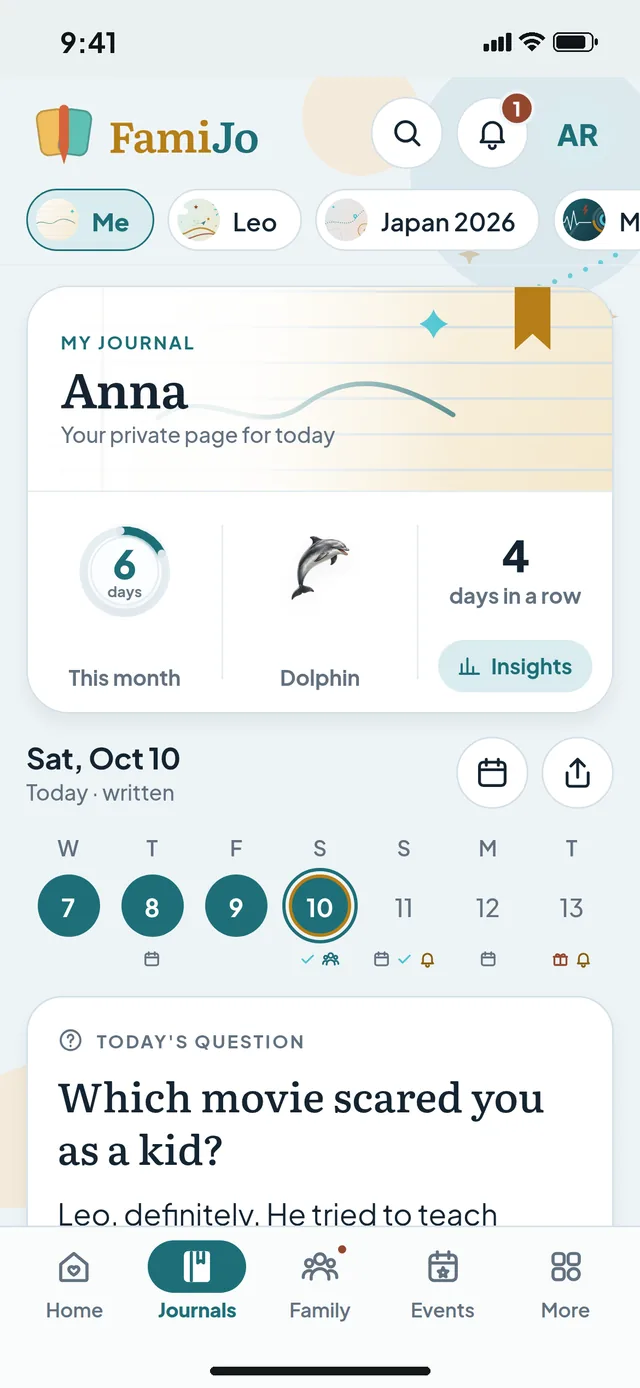
Open your journal from Home or the Journal tab (called Journals once you keep more than one). Today opens ready to write; a day you wrote reads as a page, with Edit to change it; a day still to come is a Future note.
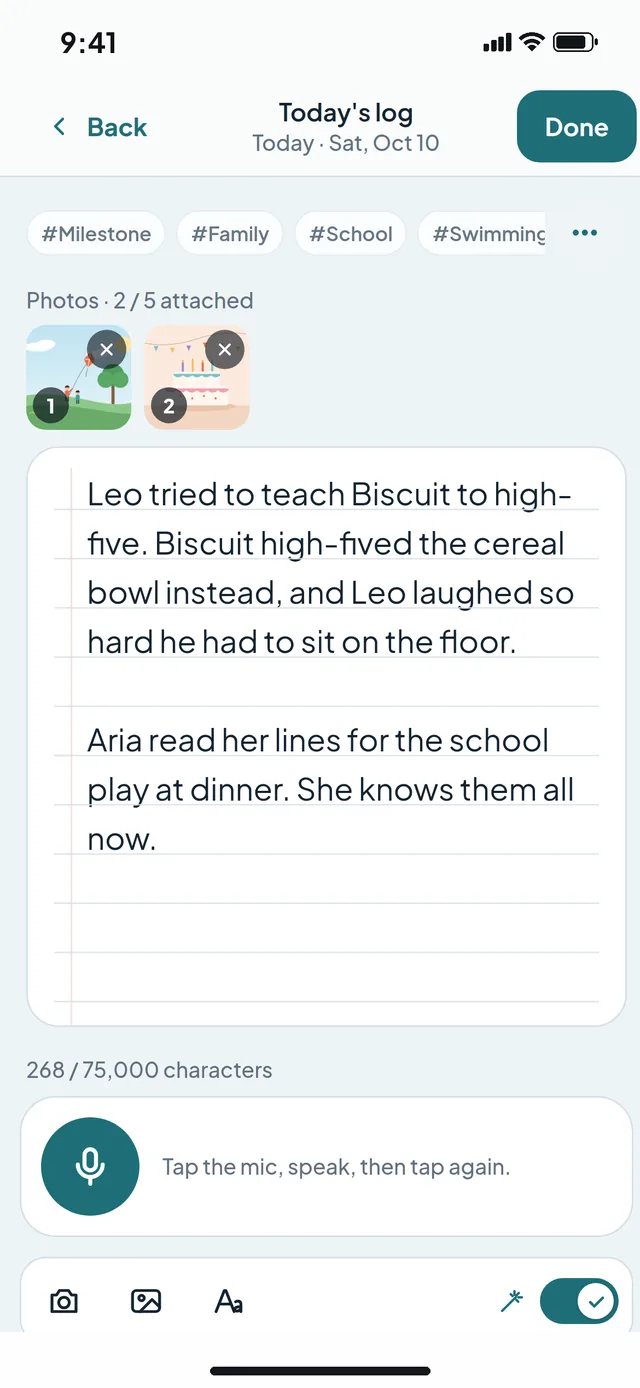
Choose Answer on Today's question or Write on Today's log. The writing page has #tags at the top, the microphone under your words (in the toolbar while a phone's keyboard is up), and Add photos, Place photo and Font in the toolbar (Preview joins them once a photo sits between your words). When you answer the question, Past years shows your answers on this date before.
Under the question, tap its set (Adults, say) to switch to Kids, Teens or Adults; the shuffle button (two crossing arrows) beside it offers three choices in turn. Changing the question keeps your words.
Choose Done to save. Back asks whether to save or discard. Words you haven't saved yet are kept on this device for 14 days, even if the app or browser closes, and come back when you open the day. Signing out removes them.
The journal pageYour journal's banner, the week around today and today's question.The writing pageTags and photos at the top, your words and the microphone; Add photos, Place photo and Font below.
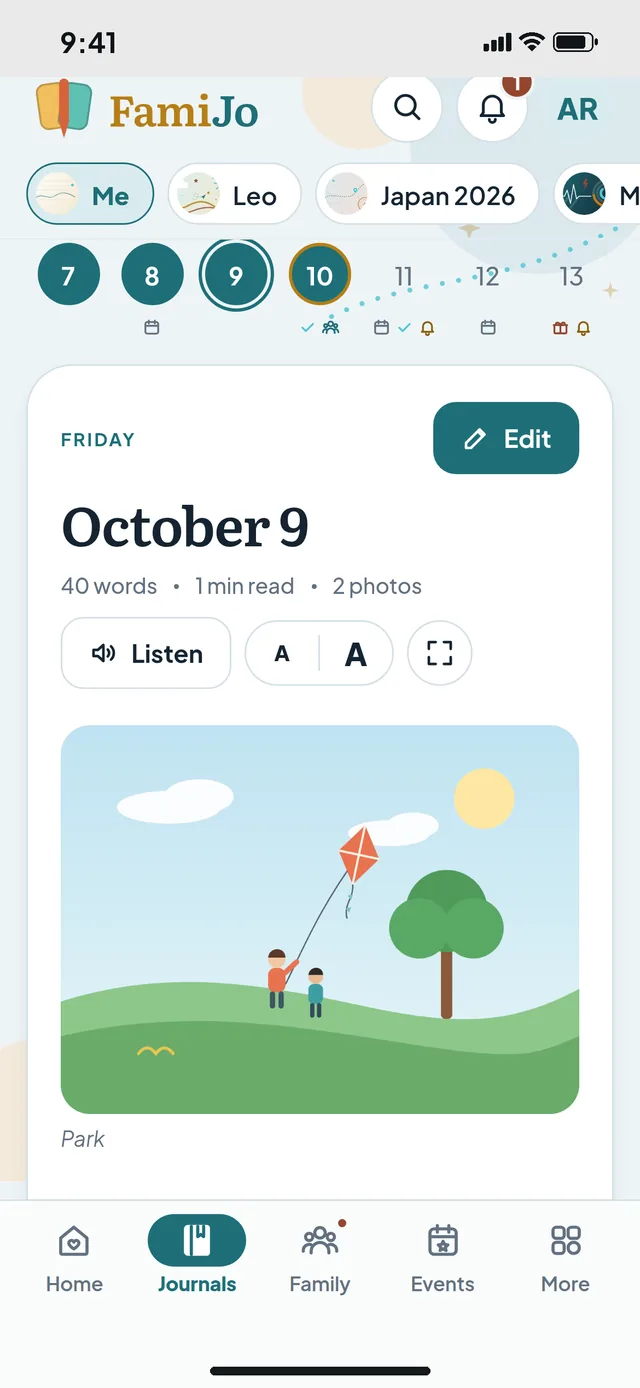
A day you have written opens as a page to read, with its photos, its question and the days around it.
Open a past day you wrote, from your journal's day strip, Home's week, Search or a notification.
Choose Listen to hear it read aloud (Pause or Stop at any time), A A to make the words smaller or larger, or Read full screen. Esc or Back closes the full screen.
Under the page (beside it on a computer), Earlier and Later open the days around it, and On this day the same date in other years and months. The day in brief sums up its tracker, steps and events.
Choose Edit to change the day. Today always opens ready to write.
Reading a dayListen, text size and full screen above the day's photos and words.
Talk through your day and FamiJo types it into the page for you.
Choose Speak your entry on Today's log, or the microphone under your words on the writing page (in its toolbar while a phone's keyboard is up).
Allow microphone access if you are asked. In the phone and tablet apps, wait for the microphone to say it is ready the first time; in a browser it starts at once.
Speak naturally, then stop the microphone before you edit.
Read it through for names and punctuation, then choose Done to save.
Your phone or watch counts your steps; FamiJo shows each day's in your journal and your Health journals.
In the FamiJo app on your phone or tablet, open More › Journal settings (on a tablet with no More: your picture › Settings › Journal settings) and turn on Steps from Apple Health (iPhone, iPad) or Steps from Health Connect (Android).
Allow FamiJo to read steps when your phone asks. It reads the step count and nothing else.
Open your journal: each day shows its steps, including a watch's once it has synced to your phone.
To stop, turn the switch off. Remove saved steps deletes the ones already saved with your days.
5 photos per journal day with active access, including your trial.
Choose Add on the day's Photos card (Snapshots in a child's journal, Postcards on a trip), or Add photos (the camera) in the writing page's toolbar.
Pick one or more photos. On a phone you can also take one with the camera. Wait for each upload to finish; photos beyond the day's limit are not added.
To put a photo between your words, choose Place photo and tap the photo: it goes at the cursor, shown as [Photo 2]. Preview shows the words with their photos.
Before sharing a day, check that everyone in the photos is happy for it to be shared.
The Today tracker ticks off little habits; day pins say in a word or two how the day felt.
Tick items on the Today tracker card as you do them. Choose Edit list to name your own (up to 8), or the bin inside Edit list (Remove Today tracker) to take it off the page; its list is kept. To bring it back, turn on Today tracker in More › Journal settings (on a tablet with no More: your picture › Settings › Journal settings) for your own journal, or in a side journal's Edit journal (touch and hold it in the bar of journals, or Edit on the Journals page).
Tap up to 4 day pins for how the day felt. Both save as you tap.
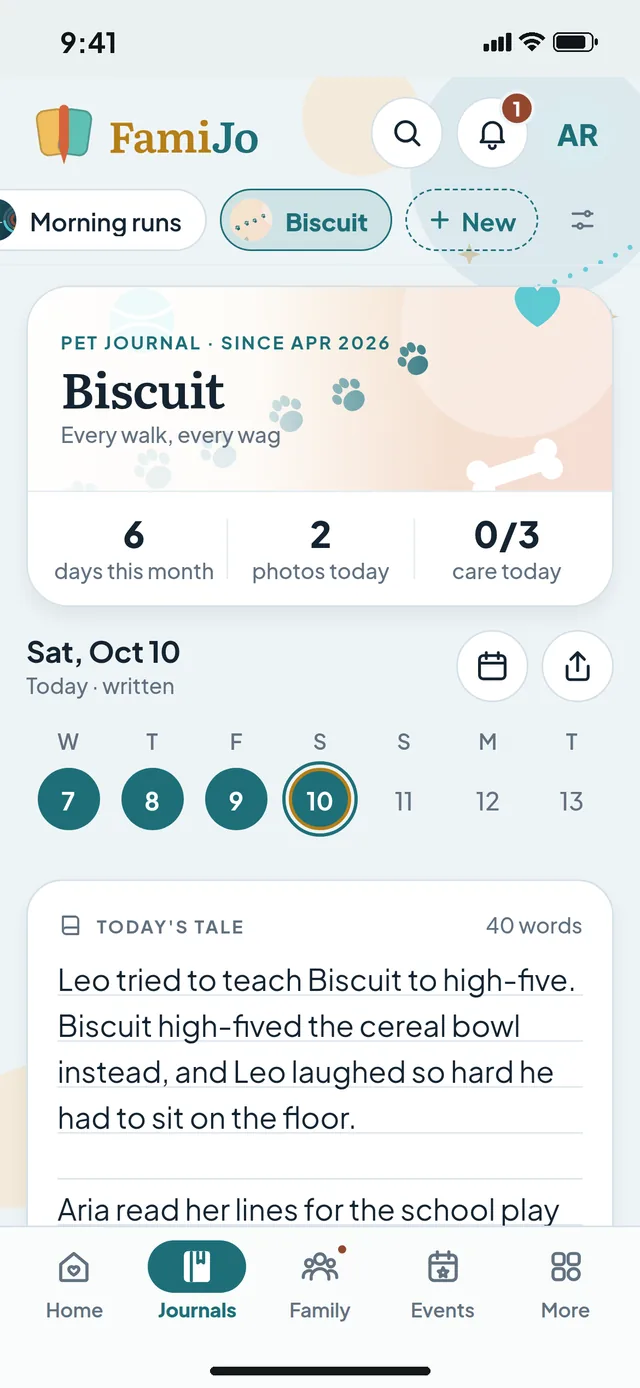
The tracker's name follows the journal: Daily wins in a child's journal, Healthy habits in a Health journal, a Care checklist for a pet.
Search your words and #tags, or type a date to see everything from that day.
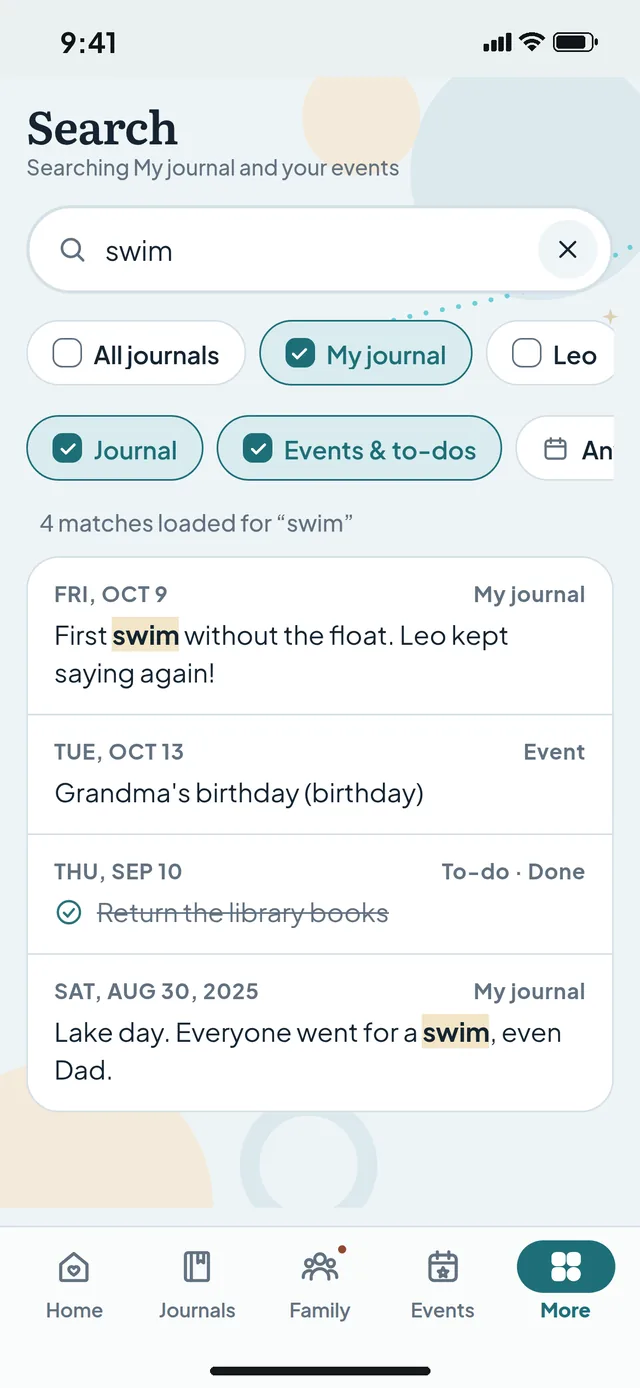
Open Search: the magnifier at the top on a phone (or More › Search), or Search in the side menu on a tablet or computer. Events has its own search button too.
Type words, names or #tags. Or type a date such as 9/20/2026 or Sep 20 to see that day's entries, events and to-dos.
With more than one journal, choose All journals or pick the ones to include; then Journal, Events & to-dos, or both.
Open a result to go straight to that day or event. Pro adds a date range (the Any date chip), with quick picks like This month and Last year.
Searching your journalsWords, events and to-dos that match, each with its date.
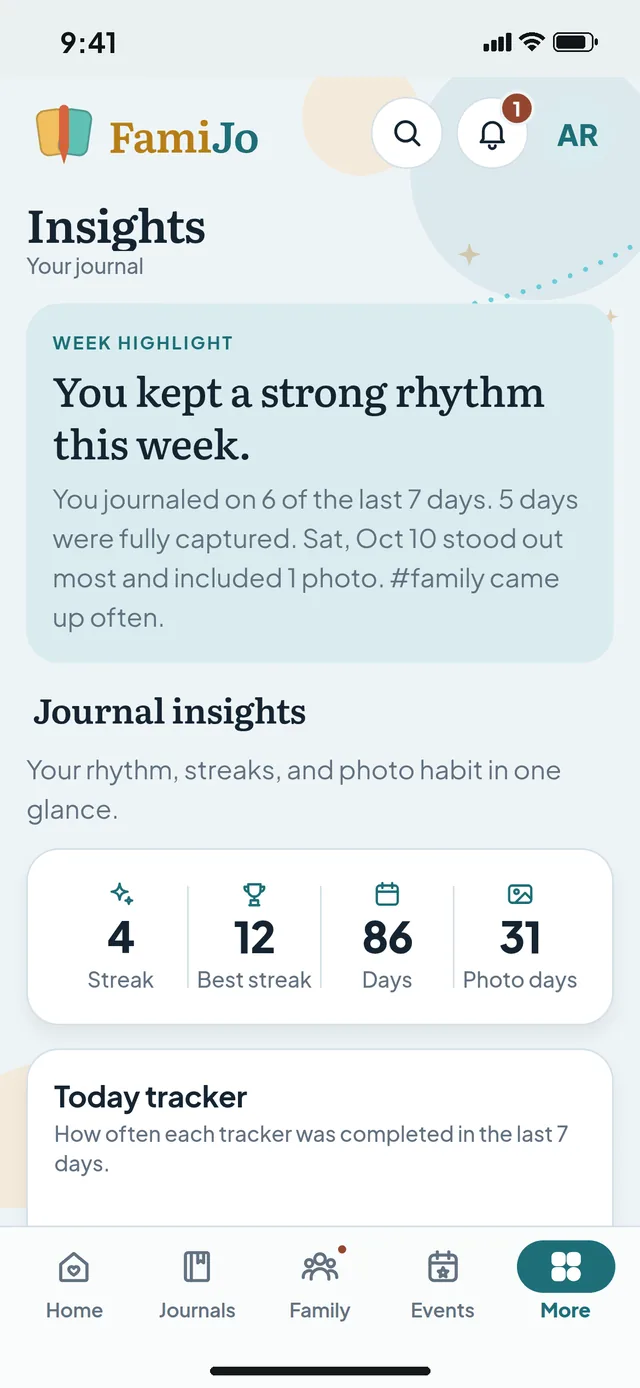
Insights turns your journaling into a picture of your habit: rhythm, streaks, photo days and your Journimal.
Open Insights from the side menu on a tablet or computer, or More › Insights on a phone.
Journal rhythm shows how many days you wrote each month. Streaks and photo days show the habit building up.
Your Journimal reflects how you have been journaling lately. Tap it to read what it means.
Insights follows the journal you are in. For a side journal, open the Journals page (Manage beside Journals on Home, the Manage journals button at the end of the bar of journals, or More › Manage journals), choose ⋯ on it, then Insights; a child's journal adds its stars and the star shop.
InsightsThis week's highlight, your streaks, days written and photo days.
Add days from a diary you kept somewhere else to your own journal: preview them, fix any problems, then import.
Open More › Import a journal (on a tablet with no More: your picture › Settings › Import a journal).
In a browser, choose a .txt or .csv file or paste your text. In the app, paste your text. Put the example in the box shows the format.
Write each date (YYYY-MM-DD) on its own line above that day's entry. Blank lines inside an entry keep your paragraphs.
Preview, fix any lines listed under Fix these lines first, tick the confirmation and choose Import (it says how many days). Download the report (Save or share the report in the app) for a record of what was left out.
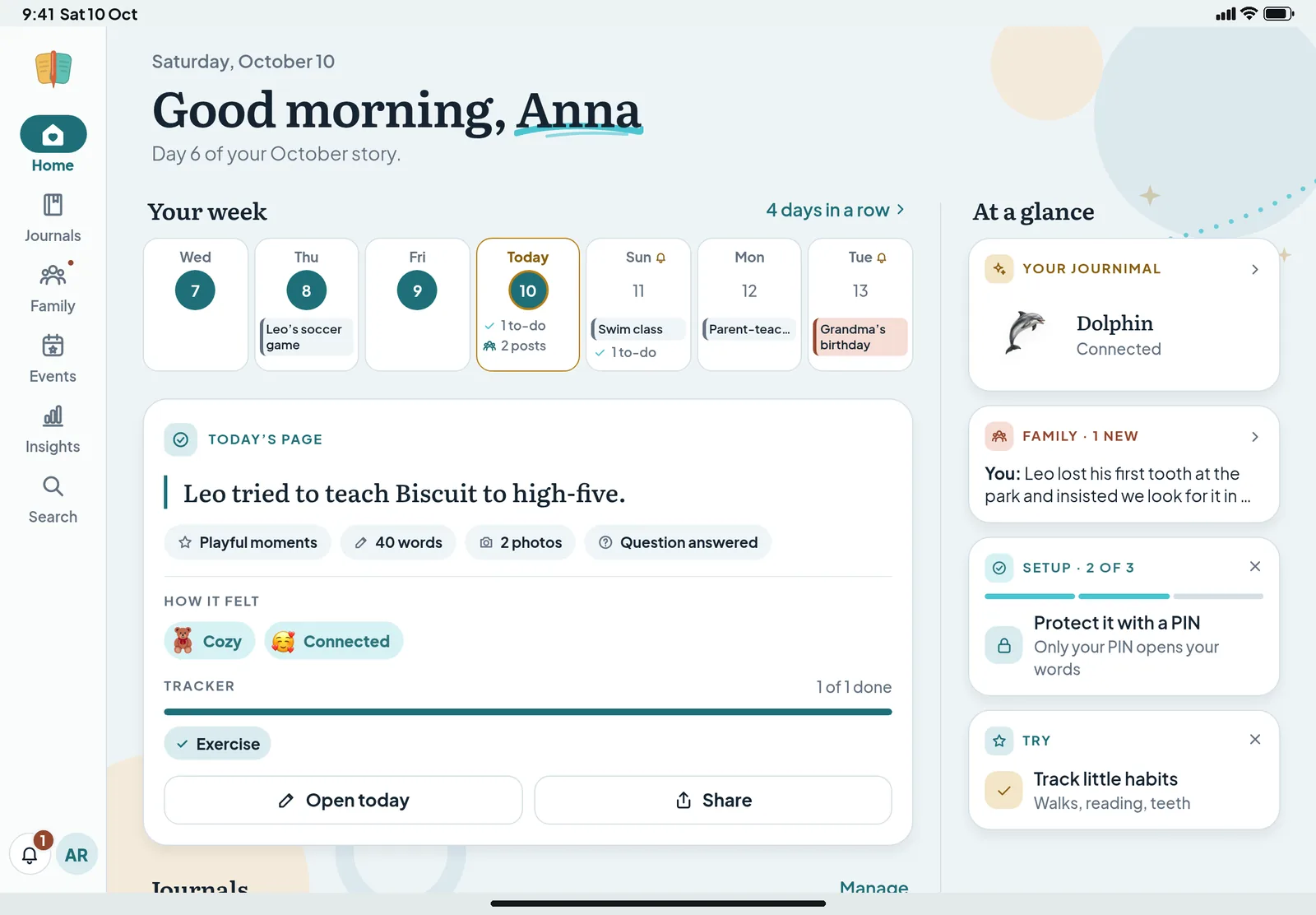
The same app, with room for your writing, your photos and your plans side by side.
Open the FamiJo app on your tablet and sign in with your existing account. Unlock with your journal PIN if asked.
The menu moves to the side: Home, Journals, Family, Events, Insights and Search. Your picture at the bottom opens your account, Settings, Help centre, Take the tour and Sign out.
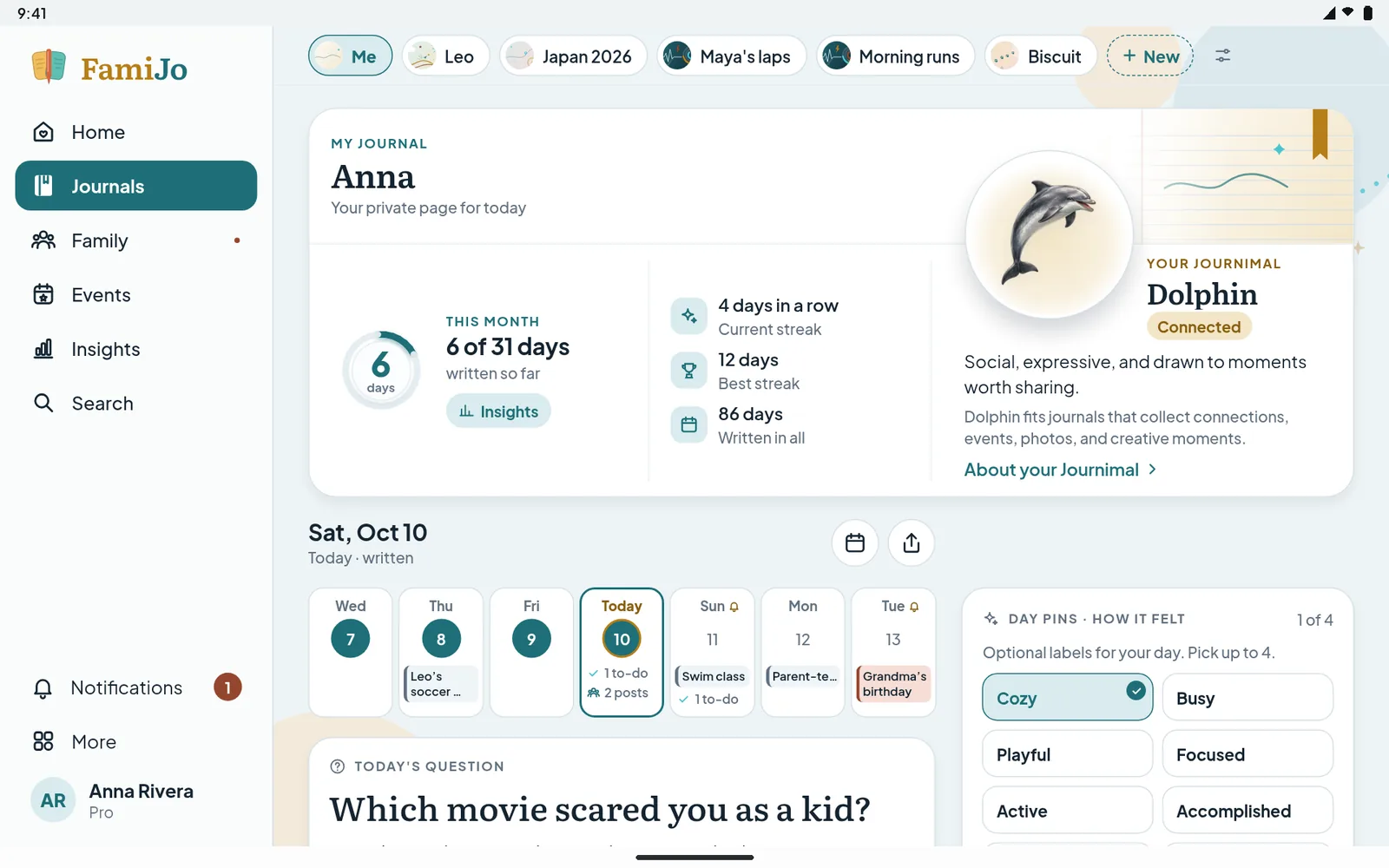
With more than one journal, a bar of journals runs across the top of the journal page; swipe sideways on the page to switch too. Your week on Home writes out each day's events, to-dos, reminders and family posts.
Turn the tablet whichever way you like. In landscape, the writing page keeps photos, day pins and the Today tracker beside your words. If the screen does not turn, check the rotation lock.
iPad in landscapeHome: your week with what is on each day, then today's page in brief.Android tabletThe bar of journals sits across the top of the page.
Sign in at famijo.com on any computer to write with a full keyboard.
Go to famijo.com and choose Sign in. Use the same account as on your phone. Tick Keep me signed in on this browser to stay signed in for up to 30 days; leave it unticked on a shared computer.
Unlock with your journal PIN. For your privacy, a new browser tab or a refresh asks for it again.
Every page has its own address, so Back, Forward, bookmarks and refresh work as you would expect (after a refresh, unlock with your PIN again).
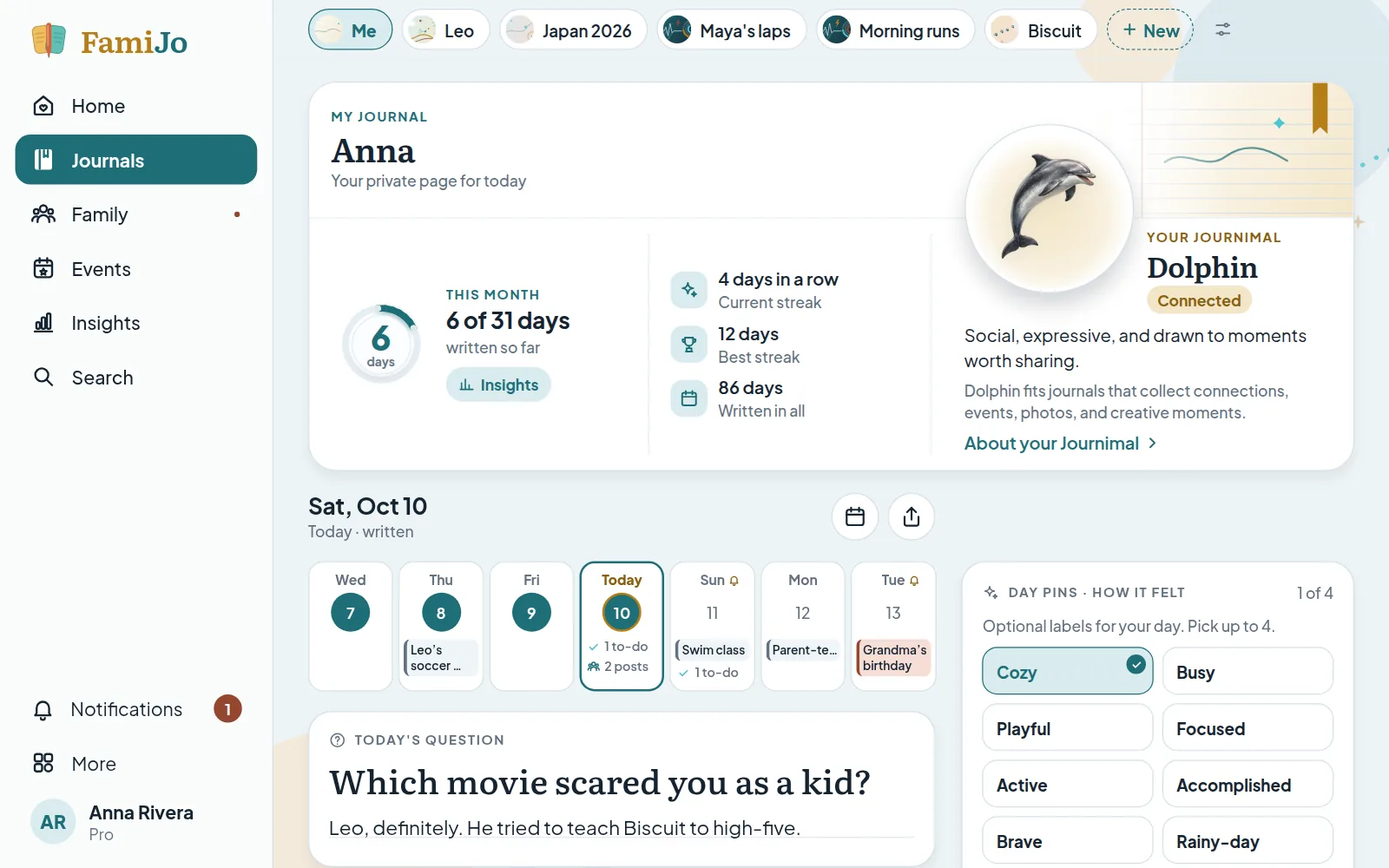
On a wide screen the side menu has More, and your name at the bottom opens your account, Settings, Help centre and Sign out. In a narrower window, choose your picture instead.
In a web browserThe side menu, your journal's banner and today's page.
One account keeps your journals together on your phone, your tablet and the web.
Open the app, or choose Start free at famijo.com. Enter an email address you can reach and choose Continue.
Add your display name and a password, enter your birth month and year, and tick to accept the Terms and Privacy Policy. Choose Send confirmation code.
Enter the 6-digit code we email you and choose Verify and continue. Check Spam if it has not arrived after a minute.
After a short welcome, Home opens with a tour and a Get started list: write your first page, add a journal PIN to keep your words private, and invite your family.
On a phone, the tabs are Home, Journal, Family, Events and More. On a tablet or computer they sit in a side menu, with Insights and Search.
More (on a phone, or in a computer's side menu) holds Manage journals (and on a phone Insights and Search), then your settings in five groups: Account & privacy, Journals, Family & events, App, and Help & about. On a tablet, choose your picture, then Settings: the same groups in the same order.
A five-step tour of Home starts on a new account's first day. Choose Next or Back to move through it, or Skip tour to close it. After that, your journal, Family, Journals and Events each show a short tour the first time you open them.
Skip tour on any of them stops the rest. To see them again, choose Take the tour in More, or under your picture or name on a tablet or computer.
On your first day, Home also shows a Get started list: write your first page, add a PIN and invite your family. Show me around starts the tour; × hides the list.
Everything you write is encrypted on FamiJo's servers; your main journal with a key made from your journal PIN.
The small lock on the writing page and on a day you read says how that day is protected. Tap it for the details.
Each day's words, mood and tags are encrypted (AES-256-GCM) before they are stored, and so are your photos. Shared journals, side journals and family posts use FamiJo's own key, so the people who write in them can read them.
Set a journal PIN in More › Security & PIN (on a tablet with no More: your picture › Settings › Security & PIN) and your main journal's key is made from your PIN instead: those days open only while you are unlocked, to show them to you, to search them and for Insights.
Days from before October 2026 had their mood and tags stored plain; they are encrypted when their journal is next unlocked (your main journal) or by FamiJo in the background (other journals).
If you still know your PIN, change it in More › Security & PIN (on a tablet with no More: your picture › Settings › Security & PIN).
If you have forgotten it, sign in and choose Forgot PIN? on the unlock screen. Check your password manager, or a device where your journal is still unlocked, first.
Read the warning, then choose Email a reset code. Asking for a code deletes nothing.
Enter the 6-digit code from your email and read the reset confirmation carefully.
Only confirm if you accept losing what the old PIN protected. Then choose and confirm a new PIN.
Keep a separate story for each child, a pet, a trip, your health or anything else.
Open the Journals page (Manage beside Journals on Home, the Manage journals button at the end of the bar of journals, or More › Manage journals) and choose New journal, then what it's about: My child, A pet, A trip, Health or Something else.
Give it a name and, if you like, a photo; pick its theme and light or dark, and invite co-authors. A trip can have its dates; a child's journal needs their birth month and year and your confirmation that you are their parent or guardian. Choose Create.
Switch journals from the bar of journals at the top of the journal page, or swipe sideways on the page. Touch and hold a journal there (or right-click it on a computer) for its settings.
On the Journals page, ⋯ on a journal has Edit details and theme, Insights, Invite a co-author, Archive and Remove journal, plus Parent controls for a child's journal and Trip recap for a trip.
Switching journalsThe bar of journals sits at the top of the journal page.
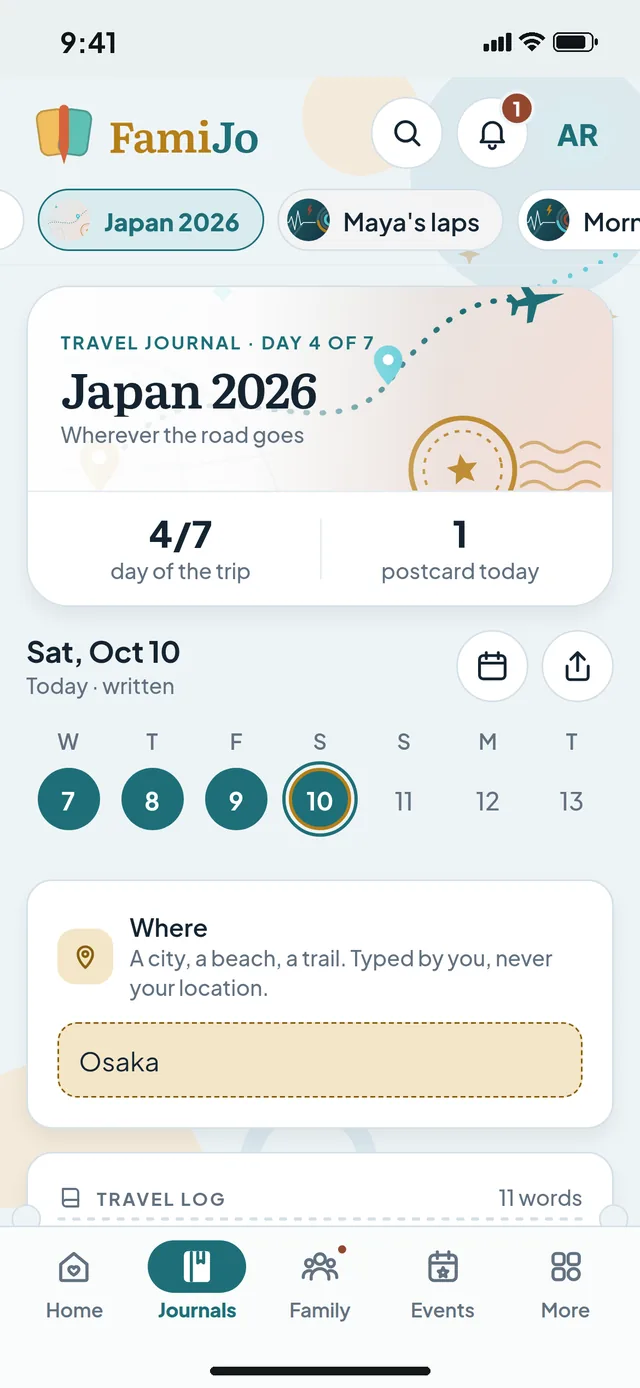
Give a trip its dates, note where you were each day, then close it with a recap, passport stamps, a map and a postcard.
Create a journal for A trip and add its First day and Last day under Trip dates (or later with Add trip dates on its card). The trip card counts down, then shows Day 2 of 5.
Each day, write in its Travel log and type where you were on the Where card ("Kyoto, Japan", "Lisbon to Porto").
Trip recap gathers the days into a route on a map, passport stamps for each place, day by day and the photos. Send a postcard makes a picture of the trip to send to anyone.
When the trip is over, choose Close trip on its card or recap: it becomes read-only with its recap and frees its side journal spot. Reopen trip lets you write in it again.
A travel journalThe trip card counts the days; Where takes the place you type.
Meals, glasses of water and activities each day, with calories if you want them.
Create a journal for Health. Each day has a Diet card (breakfast, lunch, dinner, snacks and Glasses of water) and an Exercise card.
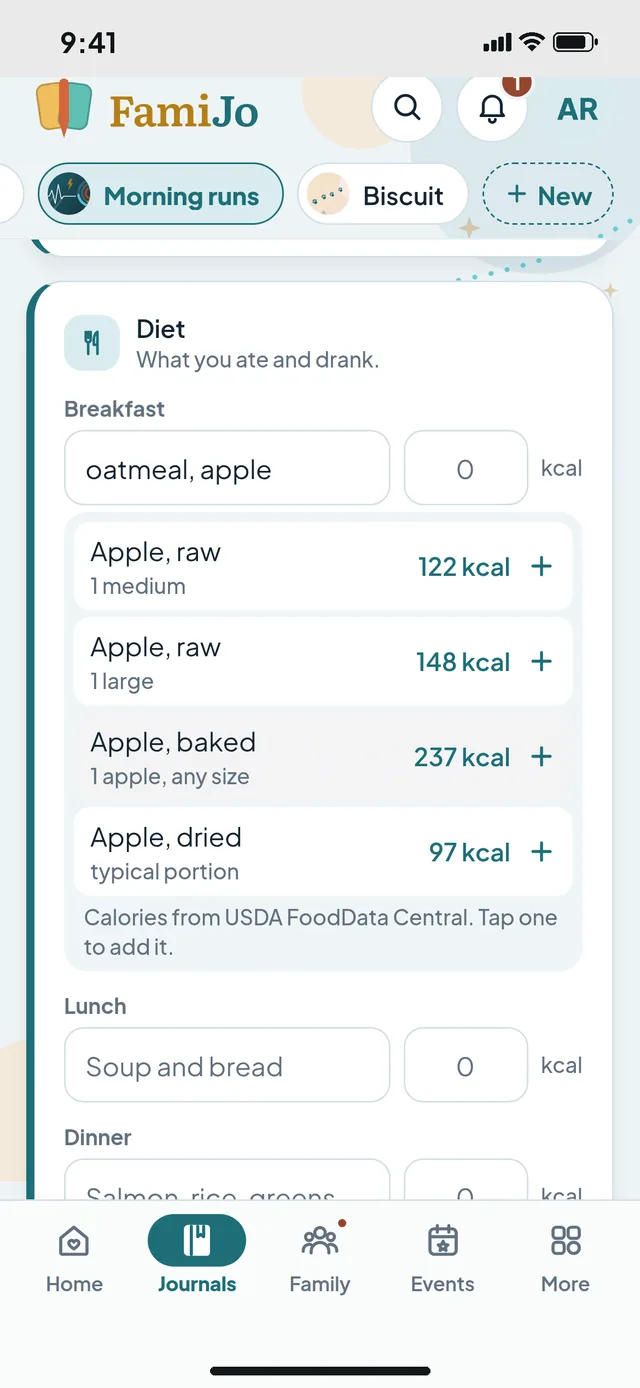
To count calories, switch on Count calories on the Diet card. Then typing a food ("apple", "2 eggs", "200 g rice") suggests its calories; tap one to give that item its calories. A meal written as a list ("oatmeal, banana") shows each item with its own number, which you can also type, and the meal adds them up; a meal with one number keeps it as it is. An empty meal offers the last one you wrote (Same as yesterday): one tap fills it in.
A food of your own: give its item the calories, then tap the star beside it, Save for next time. From then on it is suggested first, in any Health journal, counted the way you typed it ("2 idli"). Your saved foods are under Settings › Journal settings › My foods, where you can add or remove them.
On the Exercise card, choose Add an activity, name it and add its minutes. A picture to match appears for many activities. Write how the day felt in its log; with steps on, each day shows its steps too.
A Health journalWith Count calories on, a food you type suggests its calories.
A playful companion that grows as you keep journaling.
Write on a few days. Your companion appears after about five days and a hundred words, with some day pins or Today tracker ticks along the way.
Find it on Home, on your journal and in Insights, and tap it to read about it. When a new one arrives, it waits in an egg the first time you see it: tap the egg to meet it.
It follows your last few weeks of journaling, so when your journaling changes, it can change too. Which animal turns up is part of the fun.
Journimals you might meet
TurtlePatient
Steady, unhurried, and good at building a story one small page at a time.
OwlObservant
Notices details, collects questions, and likes seeing the whole picture.
CatIndependent
Curious on its own terms and excellent at noticing what makes a day feel like yours.
FoxInquisitive
Quick to explore, test ideas, and follow an interesting trail.
ElephantSteady
Reliable, thoughtful, and good at keeping meaningful memories close.
TigerBold
Ready to try, create, and step into a memorable moment.
OtterPlayful
Makes room for games, shared moments, and ordinary fun.
DolphinConnected
Social, expressive, and drawn to moments worth sharing.
HorseDriven
Keeps moving, follows through, and notices progress over time.
EagleVisionary
Looks for the larger story and keeps an eye on what comes next.
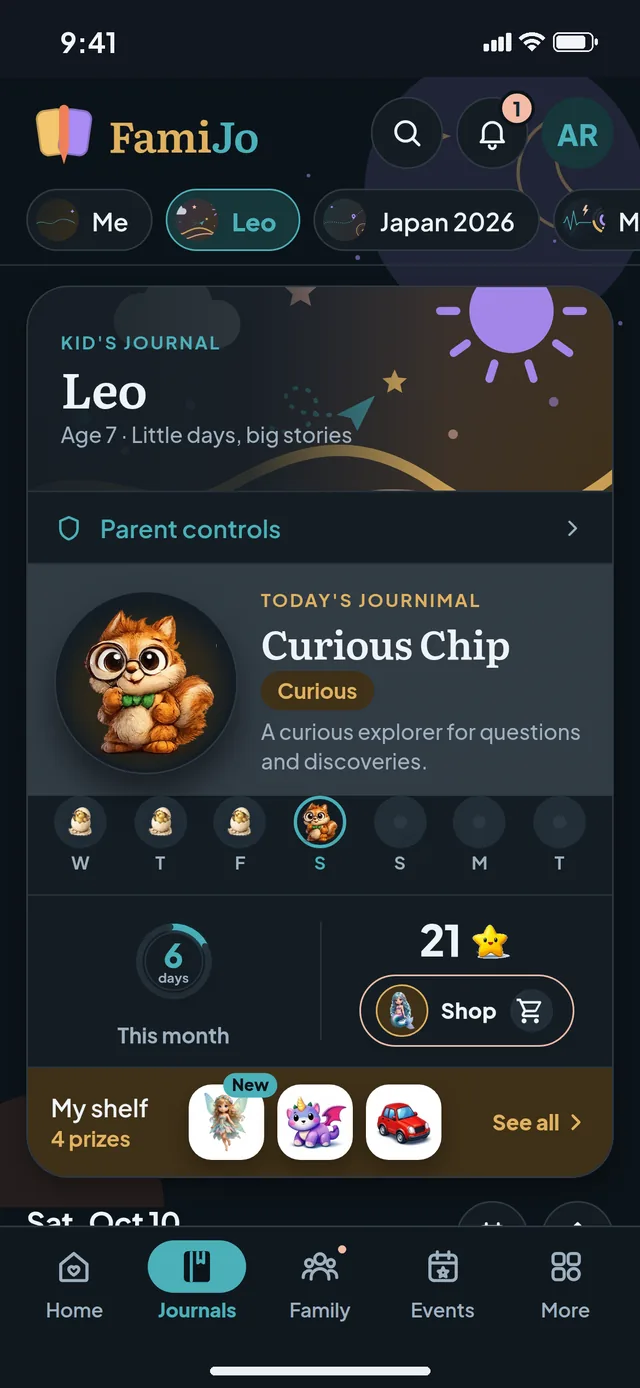
A child's journal turns everyday routines into stars, a Journimal buddy and collectibles.
Open the child's journal from the bar of journals at the top of the journal page.
Write together, answer the kid-friendly question and tick off the day's routines in Daily wins.
Ticking routines earns stars. Every day brings its own Journimal, with the week's Journimals beside it. It waits in an egg until you tap to hatch it.
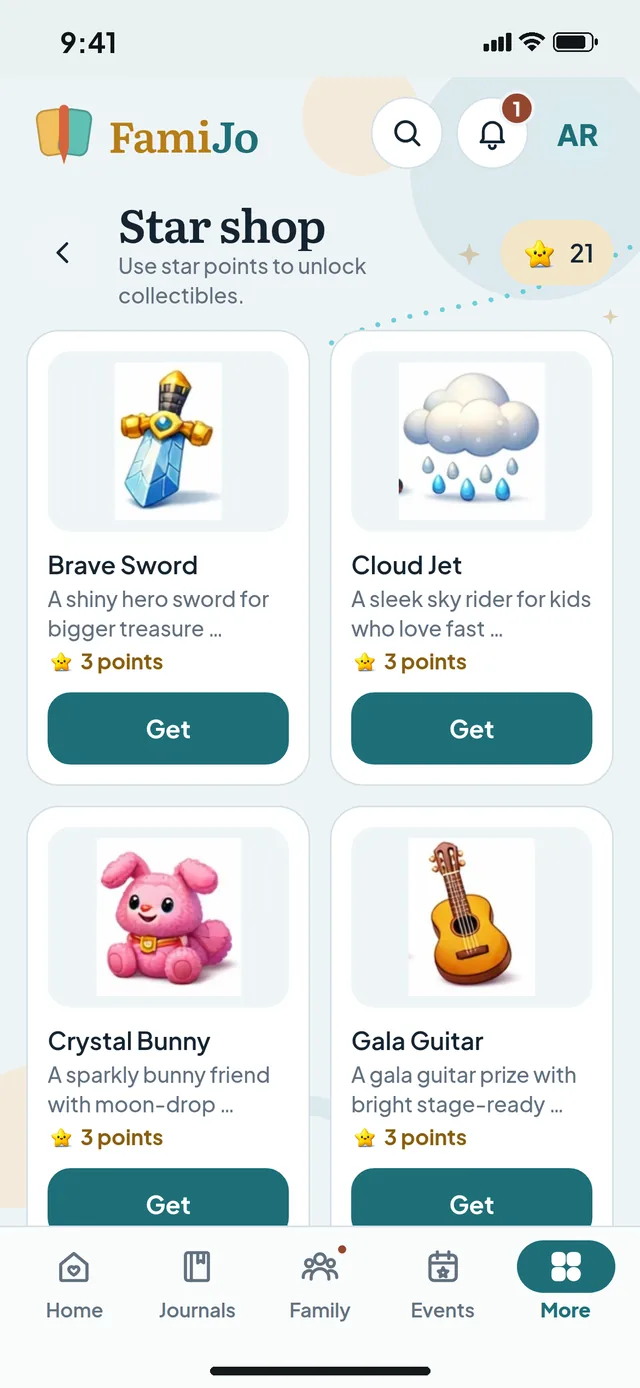
Open the Shop to spend stars on collectibles. The newest prizes show on the journal: tap one to see it up close, or See all for the whole prize shelf.
Kid Journimals
Calm CloudSteady
A gentle cloud for quiet pages and small moments.
Kindy KoalaCaring
A soft sidekick for shared moments and caring ideas.
Polite GigiThoughtful
A thoughtful giraffe for considerate everyday stories.
Curious ChipCurious
A curious explorer for questions and discoveries.
Wonder WillyImaginative
A wonder-filled friend for ideas and make-believe.
Dreamy DoodleCreative
A creative companion for doodles, stories, and big ideas.
Happy HopperPlayful
A bouncy friend for games, laughs, and fun ideas.
Focus PocusFocused
A focused fox for practice, puzzles, and progress.
Brave BlazeBrave
A bold lion for new tries and big adventures.
Goal Getter GeckoDriven
A lively gecko for plans, projects, and progress.
First collectibles
Mochi Cub3 stars
Giant Star3 stars
Twin Cones3 stars
Speedy Roadster3 stars
Pink Amulet8 stars
Pocket Rocket3 stars
Stellar Snapback3 stars
Royal Beret8 stars
A child's journalToday's Journimal, stars, the Shop and the prize shelf (here in dark mode).The star shopStars unlock collectibles for the prize shelf.
Each child journal has its own page: a summary on top, then what needs you, the sign-in, consents, the journal, and pausing or deleting.
Open the Journals page (Manage beside Journals on Home, the Manage journals button at the end of the bar of journals, or More › Manage journals), choose ⋯ on your child's journal, then Parent controls; the Parent controls button on the journal opens it too. With more than one child journal, switch between them in the row at the top.
Overview shows their age and anything that Needs you, such as a request from their sign-in to approve or turn down. On a phone each section opens on a page of its own.
Sign-in has the family code, Change passcode, Give them their own pages and Sign them out everywhere. Consents lists what you agreed to and when: open one to read it again or withdraw it.
This journal covers who can write, where its days go and Download a copy; Pause or delete (Pause & delete on a wider screen) has freezing and deleting.
A child under 13 can write in their journal from their own device with your family code and a passcode you choose. It stays in your account.
In Parent controls for their journal, open Sign-in and choose Set up your child's sign-in (it shows their name). Choose a passcode, read what FamiJo keeps and doesn't, and choose Confirm by email.
Open the email we send you and confirm (the link works for 72 hours), then choose I've confirmed.
On their device, your child chooses A child? Sign in with your family code and enters the code, their first name and the passcode, then Let's go.
They write, collect stars and can ask you for a new journal, to share a day, voice typing or steps. Their requests show under Needs you in Parent controls; you decide. More › Journal sharing (on a tablet with no More: your picture › Settings › Journal sharing) lists who is waiting.
FamiJo accounts are for people 13 and over. A parent can move a younger child's journal into a child journal in the family.
The child opens More, then your name at the top (on a tablet with no More: your picture › Account), chooses This account is for a child under 13, enters a parent's email and chooses Ask my parent. The account is frozen from then on.
The parent opens the emailed link in their own FamiJo, enters the child's first name and a passcode, confirms they are the parent or guardian and chooses Confirm by email. If it isn't their child, Delete it instead removes it and keeps nothing.
Once the parent confirms from that email, the child's journal becomes a child journal in the family, and the child signs in with the family code, their first name and that passcode.
Your journal is private. Family in your groups follow along and see only the days you post.
Open Family and choose Create a family group (later: Groups › New group). Invite people by email; they join once they accept.
In your journal, open a day you have saved and choose the share button.
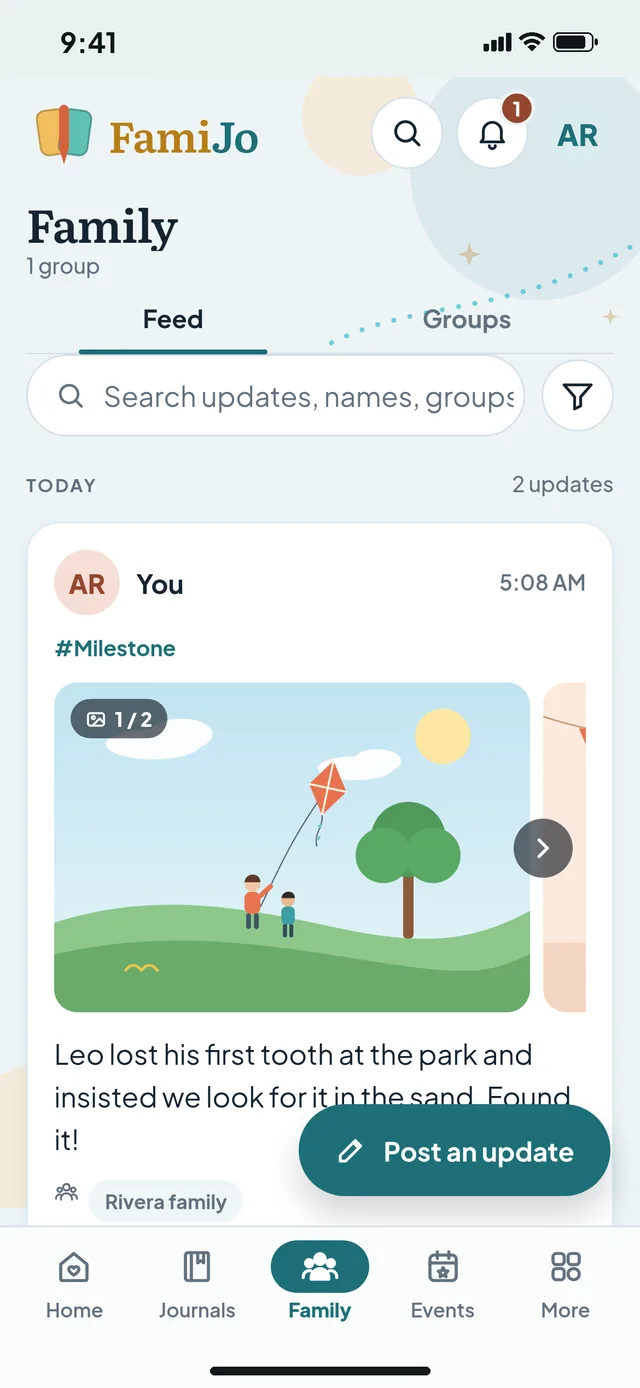
Choose This day or Every day, pick the groups and choose Post. Every day posts your earlier days too, and each day you save from then on. Or choose Post an update in Family for a quick note to your groups.
In Family, react to posts, search and filter the feed, and choose Remove post on your own post if it should no longer be there.
Send a day, with its photos if you like, to WhatsApp, Messages or email.
Open the day's share button and turn on Also send to WhatsApp or another app. Include photos is on when the day has photos; turn it off to send only the words.
Choose Choose app (or Post, then send), pick WhatsApp or another app, check the message and send it.
Your own posts in Family have Send to another app too.
In a browser, FamiJo uses the browser's share menu where it has one (with photos where the browser can send files), or copies the text for you to paste.
Co-authors write a side journal with you. Followers are the family in your groups: they see only the days you share.
Open the Journals page (Manage beside Journals on Home, the Manage journals button at the end of the bar of journals, or More › Manage journals) and choose ⋯ on the side journal.
Choose Invite a co-author and enter the email of someone you trust. They can write once they accept.
Now and then, review who has access in Edit details and theme › Access, and remove people who no longer need it.
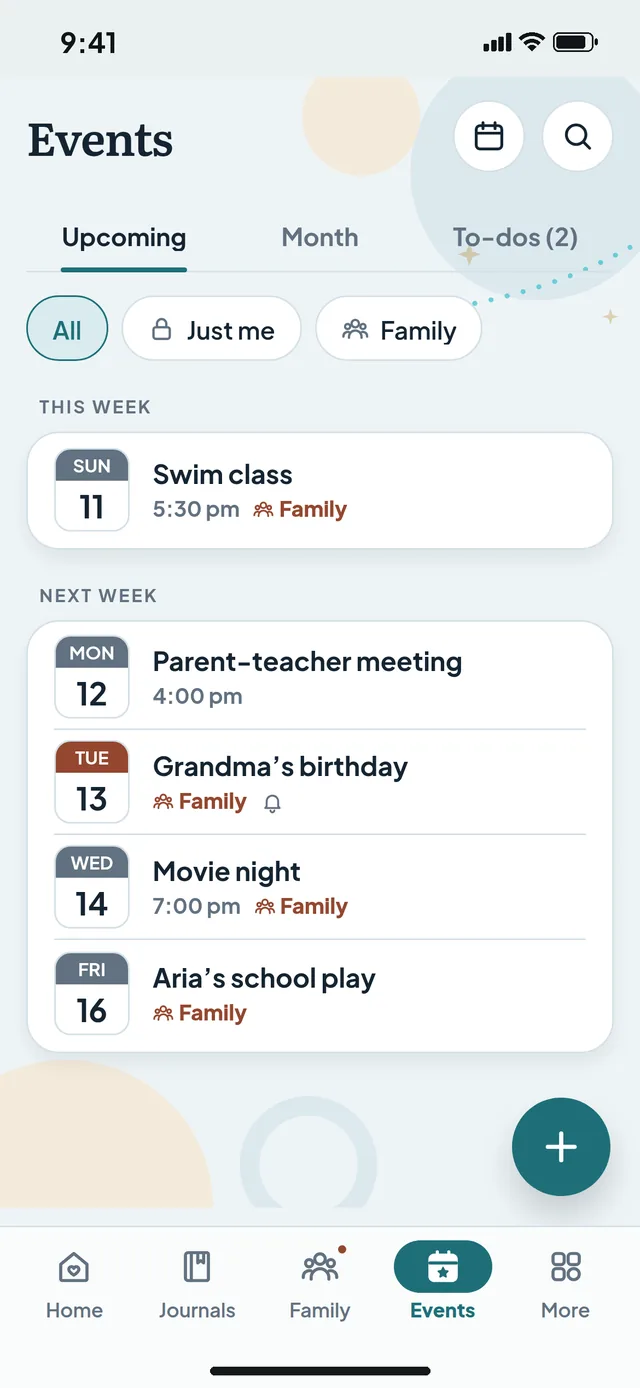
Birthdays, school plays and everyday tasks, in one place.
Open Events and choose + (on a computer, New event or New to-do).
Add a title, the date and, if it repeats, how often: every week, every Sunday or the last Friday of the month.
For something at a set time, such as a concert at 5 pm, turn off All day and choose when it starts (and ends, if you like). A to-do can have a time it is due.
Keep it to yourself with Just me, or choose Family and the groups who should see it. Switch between Upcoming, Month and To-dos, and tick a to-do when it is done.
Your events and to-dos in the calendar you already use, kept up to date.
In Events, choose the calendar button, or open More › Calendar (on a tablet with no More: your picture › Settings › Calendar), and turn on the calendar link.
On an iPhone, iPad or Mac, choose Add to Apple Calendar and then Subscribe. On other devices the button says how.
For Google Calendar, use a computer: at famijo.com choose Add to Google Calendar and paste the copied link into the URL box, or copy the link and add it in Google Calendar under Other calendars, then From URL. It then shows in the Google Calendar app on your phone too; on Android, if it doesn't, turn on Sync for FamiJo in that app's settings. On a phone, Add to Google Calendar shows these steps.
Choose whether family events and to-dos are included (a to-do shows on the day it's due; a one-off one goes once it's done or 5 days late, as in Events). Add the link to one calendar only, or everything shows twice where you see both. If you shared it by mistake, reset it, remove the old FamiJo calendar from your calendar app and add the new link; or turn it off.
Your first 5 days of Pro are free, with no payment or automatic renewal. Then choose $3/month or $24/year in the app.
Open More › Membership (on a tablet with no More: your picture › Settings › Membership) to see your plan and dates.
Choose Monthly ($3/month) or Annual ($24/year) in the iPhone, iPad or Android app. Both include everything. The store may show an introductory price for your first year.
Tap anything marked Pro to see what it adds, without changing your account.
Use the same FamiJo account everywhere so your membership follows you to every device and the web.
Included in your trial and in Pro ($3 a month or $24 a year)
Feature
Included
Journal photos
5 photos per journal day
Side journals
10 active side journals
Family groups
5 groups with 10 members each
Co-authors
4 co-authors per journal
Journal text
Up to 75,000 characters per day
Journal search
Keyword search with date filters
Personal style
All available themes and journal fonts
Family posts
10 photos per post
Sharing
FamiJo Feed and text sharing through other mobile apps
Collectibles
Earn with kids' journal stars
Journaling tools
Daily questions, customisable trackers, and optional Journimals
Cancelling never means losing your memories. An account that never subscribes is deleted after a year.
Open More › Membership (on a tablet with no More: your picture › Settings › Membership) to see where your access comes from and when it ends.
For a store subscription, choose Manage or cancel renewal and finish in the App Store or Google Play.
The trial does not renew by itself. Without a subscription, writing pauses when it ends; your journals stay readable, and subscribing later lets you write again with nothing to move.
If an account never subscribes, it is deleted with everything in it 12 months after the trial ended. We email 9, 10 and 11 months after the trial ended and 3 days before, and confirm when it's done. Subscribing any time before keeps it.
Journimal is a private, playful journaling persona, not a health, wellness, mood, medical, diagnostic, therapy, personality, or safety assessment.
Open More › Privacy & data (on a tablet with no More: your picture › Settings › Privacy & data) and read How Journimals work.
Turn Journimal reflections off if you would rather just write. Everything else keeps working. It covers your own journal and your other side journals, which then hide their day pins; your children's journals keep their day pins and Journimal, and day pins you saved before stay with their days.
Check each journal's sharing separately; turning off Journimal does not remove anything you shared.
Review your privacy choices, ask for help with your data, or delete your account data.
Read the Terms of Use, the Privacy Policy and the other policies in More › About FamiJo (on a tablet with no More: your picture › Settings › About FamiJo); the privacy policies are also under Policies in Privacy & data.
Use the requests under More › Privacy & data (on a tablet with no More: your picture › Settings › Privacy & data), Your data, to ask for a copy or a correction of your data.
If you want a copy, request it first and wait for support before deleting anything.
To delete your journals' days, photos, events and posts but keep the account, choose Delete data… under Danger zone and confirm with your password (or a code emailed to you if you sign in with Google or Apple). They go to a trash for 30 days: Bring it all back, on the same page, restores them; after that they are deleted for good. To delete the whole account, choose Delete my account… (see Delete your account).
Delete your FamiJo account and the data in it. It's locked at once and deleted for good after 30 days.
Open More › Privacy & data (on a tablet with no More: your picture › Settings › Privacy & data) and choose Delete my account… under Danger zone.
Choose who keeps each journal other people write in (or let it be deleted) and, if other adults are in your family, who looks after it.
Confirm with your password, or with a code we email you if you sign in with Google or Apple. Your account is locked on every device and we email you the date.
Changed your mind? Sign in before then and choose Keep my account.
Posts only appear when someone shares a saved day or posts an update to a group you are in. Your own journal stays private until you share it.
Why haven't I met my Journimal yet?
It appears after about five days and a hundred words, with some day pins or Today tracker ticks along the way. When a new one arrives, it waits in an egg the first time you see it: tap the egg to meet it.
How many photos can I add?
5 photos per journal day with active access, including your trial.
Will subscribing move or erase my journals?
No. Membership only changes what you can do with the same account. Use the same email on the web and in the app.
Does a password reset also reset my PIN?
No. Your password signs you in. A forgotten journal PIN has its own email-code reset, which permanently clears the text the old PIN protected.
Can I keep reading after Pro ends?
Yes. Your journals stay readable. Writing, uploads and some journals pause until you subscribe again.
Do my children need their own subscription?
No. Children's journals, and a child's own sign-in to them, are part of a parent's account and plan.
Where are my settings?
In More: the last tab on a phone, or near the bottom of the side menu on a computer. Where the side menu has no More (most tablets), choose your picture at the bottom of it, then Settings.
FamiJo uses only essential cookies and browser storage: to keep you signed in, protect your account and remember your settings. No advertising cookies. Cookie policy




















 Mochi Cub
 Giant Star
 Twin Cones
 Speedy Roadster
 Pink Amulet
 Pocket Rocket
 Stellar Snapback
 Royal Beret